
There may be times when you want to override grades in bulk for a particular question. For example, you may decide to award all students full credit for a question. The steps below explain how to apply a bulk grade override.
- Log in to www.mybusinesscourse.com.
- Select Go to Course.
- Select Gradebook.
- Locate the assignment and select the assignment name.
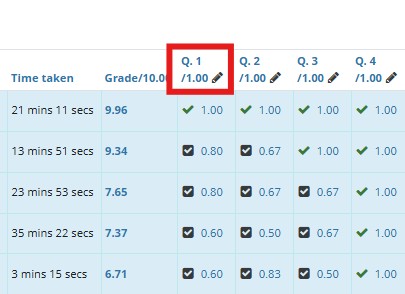
- Locate the question for which you want to override grades.
- Select the pencil icon next to the question. (If you do not see the pencil icon, this means the Marks are not turned on in your assignment settings. These will need to be turned on first.)
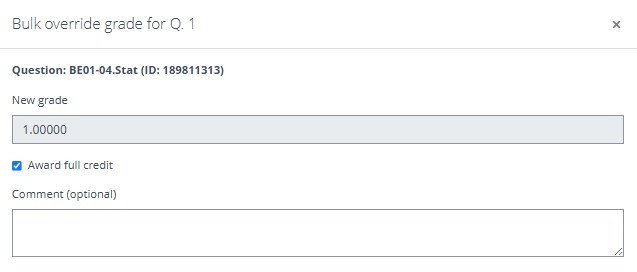
A pop-up window will appear displaying the name of the question being overridden.
NOTE: When you run the override, it affects only attempts that have already been submitted. Attempts that are still in progress are skipped, and the confirmation message will show how many were not updated. If a student submits an attempt later, the override will not be applied to that submission. The override updates every submitted attempt for the assignment across all students, including multiple attempts from the same student. This action cannot be reversed.
- To award full credit, leave the Award full credit option selected.
- To assign a different score, clear the checkbox and enter the new grade you would like students to receive.
- If desired, enter comments in the Comment (optional) field.
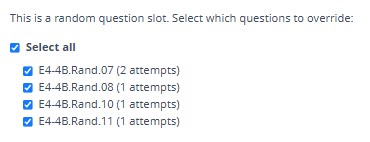
If you are overriding a random (algorithmic) question, the pop-up will display the available question versions and the number of attempts associated with each version. You can choose Select all to override all versions or select only the specific versions you want to update.
Once you have made your selections, click Bulk grade override to apply the changes, then Confirm.