
The Late Submission Penalty feature allows students to submit assignments after the deadline and enables instructors to apply penalties based on how late the submission is.
Configure Late Submission Penalties
- In your course, locate the assignment you want to update, or create a new assignment.
- For an existing assignment, select Edit > Edit Timing.
- For a new assignment, configure the assignment settings as needed, then select Continue to Timing.
- Configure the assignment's Open Date, Close Date, Time Limit, Number of Attempts, and Password (if applicable).
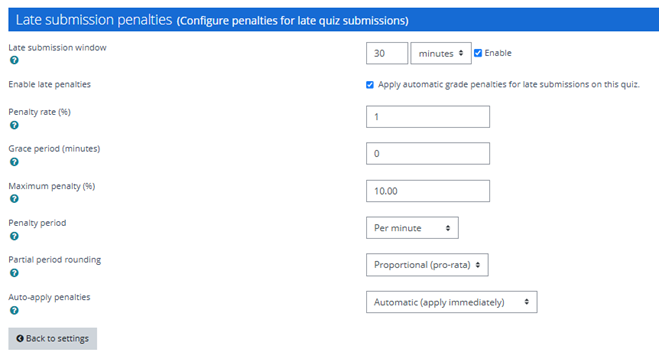
- Scroll to the Late Submission Penalties section and configure the desired settings.
- Select Save Changes.
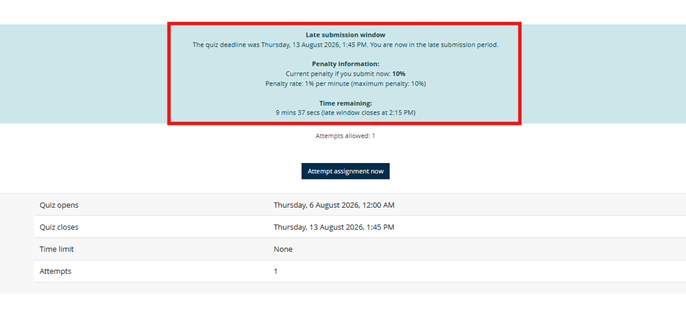
Students will see a notification before starting the assignment informing them that late submission penalties may apply.
Note: If you shift the deadline for a section, the late submission window will shift accordingly. Additionally, a quiz with no close date set gets no late penalties. If a student has a user override, the late submission window begins after the student's adjusted close date rather than the original assignment close date.
Late Submission Penalty Settings
Late Submission Window
Specify how long students may submit an assignment after the deadline. You can enter the duration in seconds, minutes, hours, days, or weeks.
Apply Automatic Grade Penalties for Late Submissions
Automatically deduct points from late submissions based on the configured penalty settings.
Penalty Rate (%)
Enter the percentage deducted during each penalty period. For example, a penalty rate of 10% reduces the student's score by 10% for each applicable penalty period.
Grace Period
Time after the deadline during which no penalty applies. Submissions within the grace period are not penalized at all. For later submissions, the penalty is calculated on the time remaining after the grace period — so with a 15-minute grace period, a submission 20 minutes late is penalized for 5 minutes, not 20.
Maximum Penalty (%)
Set the maximum percentage that can be deducted from a student's score, regardless of how late the submission is.
Penalty Period
Define how often penalties are applied after the deadline (for example, every hour or every day).
Partial Period Rounding
Choose how penalties are calculated for incomplete penalty periods:
- Round up (ceiling): Applies the full penalty for any portion of a penalty period.
- Round down (floor): Applies penalties only for completed penalty periods.
- Proportional (pro-rata): Applies a partial penalty based on the portion of the penalty period that has elapsed.
Auto-Apply Penalties
Determines whether penalties are automatically applied by the system or manually applied by an instructor.
Managing Penalties
To view and manage late submission penalties for an assignment:
- In your course, locate the assignment and select Edit.
- Select Late Penalties.
- Select Details next to a student's name to view:
- Original deadline
- Submission date and time
- Late by
- Penalty rate
- Periods late
- Final penalty applied
To remove a penalty, select Undo next to the student's name.
