
Get your students comfortable with MBC and ready to tackle the course assignments with a Student Orientation practice quiz. This can be set as ungraded (0 pts) or graded.
Create a Student Orientation Quiz
- From the Instructor Dashboard, click Go to Course.
- From the Course Home Page, click Course Content to expand your Course Navigation Menu.
- Click on the Chapter/(Module) in which you want to build the Student Orientation assignment.
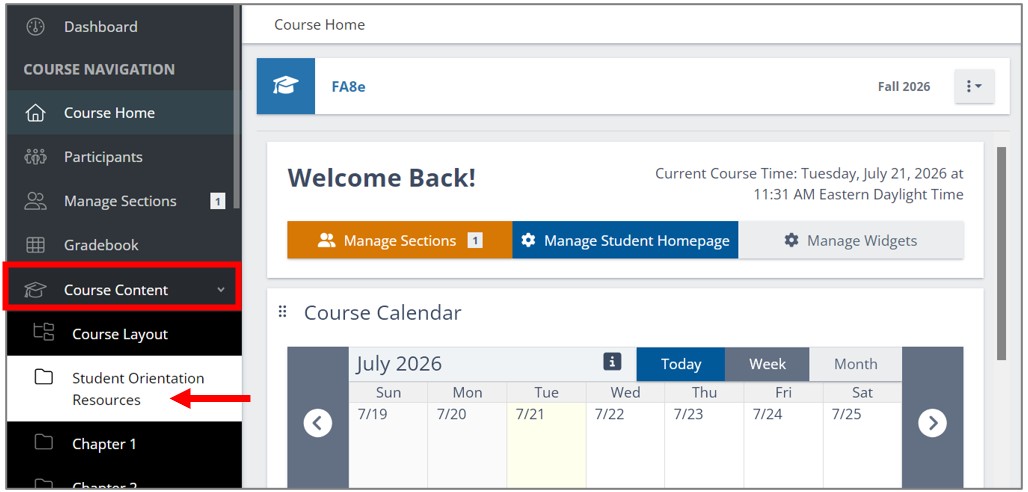
- Click on the Chapter/(Module) in which you want to build the Student Orientation assignment.
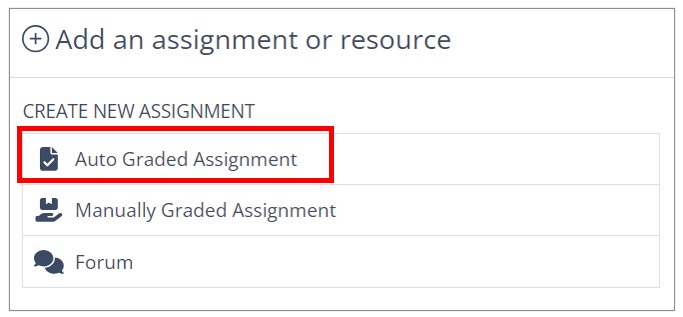
- Click Add an assignment or resource.

- Select Auto Graded Assignment.
Settings Tab
- Name the assignment.
- Assignment name becomes the column header in the Gradebook (if graded).
- Select a Template.
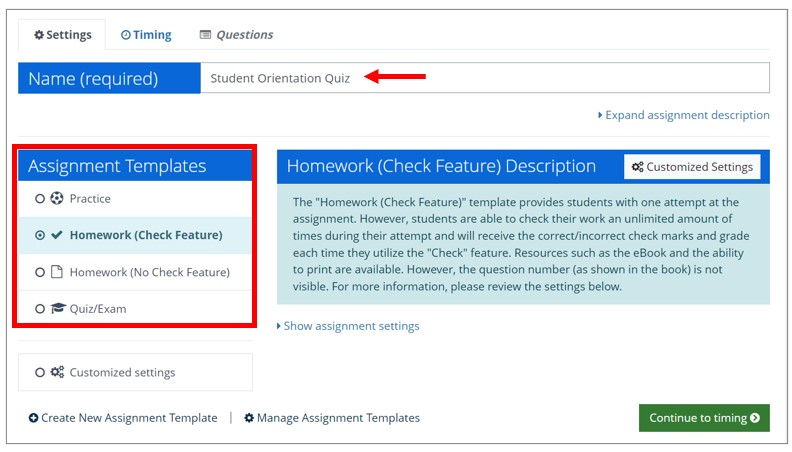
- Click Continue to timing.
Timing Tab
- Set Submission Options
STRONGLY recommended to keep the default setting of Open attempts are submitted automatically.
- Set Timing parameters for each Section.
- Toggle Date/Time fields to ON and set dates/times.
- Open = date/time students can gain access
- Close = due date; students can no longer work the assignment past this date/time
- WARNING! If unset, assignment has no restriction and is and/or will remain OPEN!

- If a Time Limit is required, toggle Time Limit field to ON if required.
- Real-Time running clock
- Recommended for Testing purposes.
- Attempts allowed is an Override to the template settings.
- Adjusting the number of attempts alters this assignment only.
- Toggle Date/Time fields to ON and set dates/times.
- Click Save & Continue to Questions.
Questions Tab
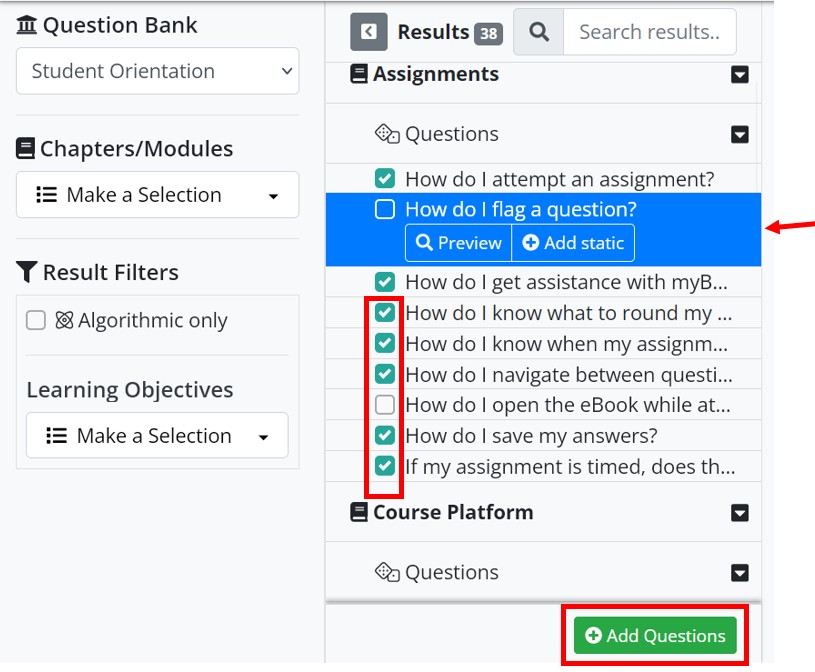
- On the left-hand panel, Select the Student Orientation Question Bank from the drop-down field.
All orientation questions will be shown in the center panel.- Optional: Use the Chapters/Modules Filter to reduce list to select topics (as desired)
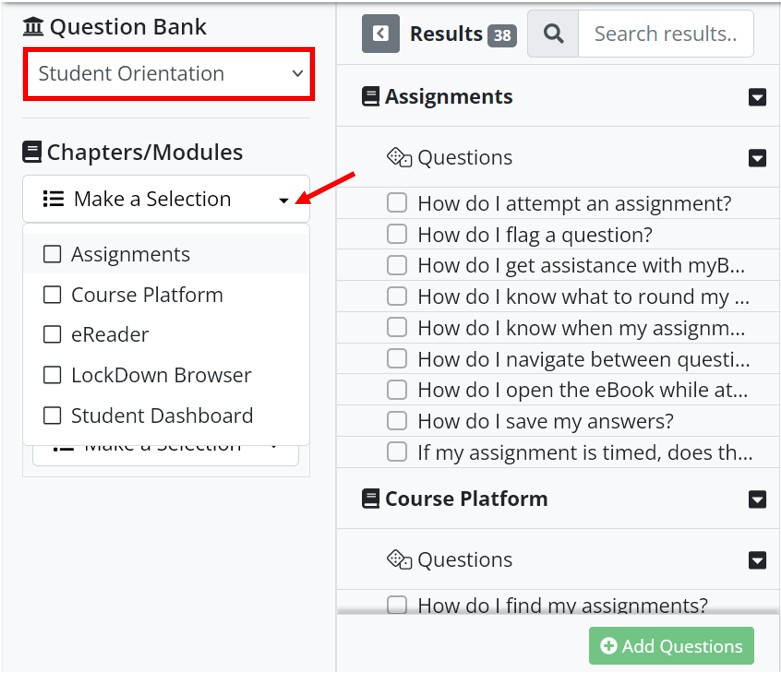
- Optional: Use the Chapters/Modules Filter to reduce list to select topics (as desired)
- In the center panel, Select Questions to assign.
- Click boxes to add multiple questions at once.
- Click on the question to expand options.
- Preview
- Add static version
- Click Add Questions.
- Added/included questions will appear on the right-hand panel.
- Added/included questions will appear on the right-hand panel.
- Optional: Click Set Points if you want to change the default point value per question or the overall assignment value. (Set to 0 points to make it ungraded)
- Points can also be manually changed/distributed by clicking in the points field for a question, backspace, enter the new value, Enter.
- Assignment Value is sum total of all questions' point values.
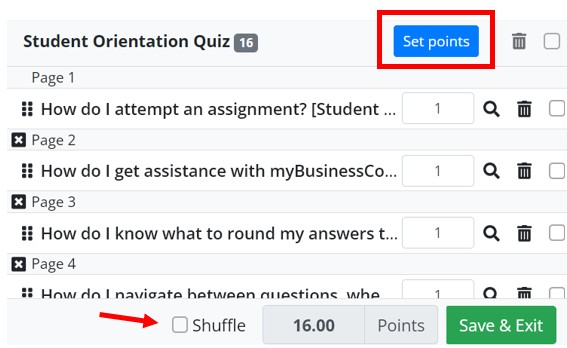 Optional: Click to check Shuffle to change the order questions are received by each student.
- Click Save & Exit.